INSTALLATION
- Unzip file Installation_PI-SIMRC_version.zip
into a temporary directory and run setup.exe under \Volume
- The destination directory (default settings
recommended) will be automatically created and the PI-SIMRC software will
be installed there.
- LabVIEW Library and Driver files are located
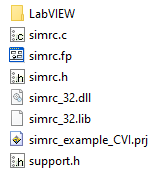
under the application directory’s subfolder \driver and \driver\LabVIEW
- A short cut for easy starting the SFP will be
placed on the desktop.
- Uninstall PI-SIMRC by using Remove Programs in
the Control Panel.
SIMRC Soft Front PANEL
SIMRC SOFT FRONT PANEL
HELP
This help file
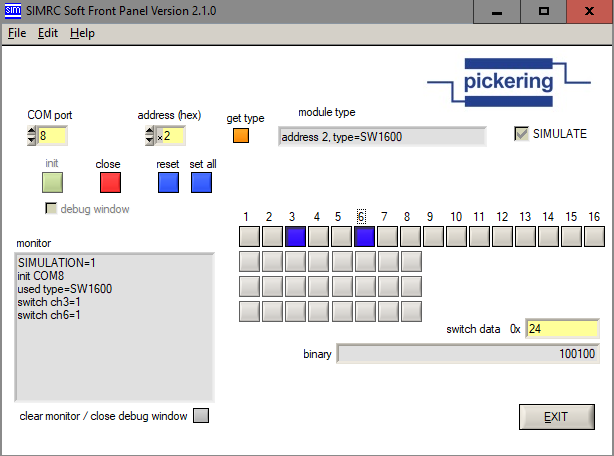
gives a brief introduction of the SIMRC Soft Front Panel controls and
indicators. All controls with a yellow background are user input controls.
COM port
Selects the appropriate
serial port to be used with the SIMRC hardware (either the single SIMRC or
Module 1080 must be switched to RS-232 control).
init
Opens
and initializes the selected COM port and reads back device ID and version
information of the connected SIMRC RS232 controller.
debug window checkbox
Check
or uncheck before init. If checked a standard I/O window in the
background shows transmitting data via the RS-232 interface.
close
Closes
the previous opened COM port. The current switch state of used SIMRCs will
remain.
address (hex)
Sets
the appropriate I2C slave address to communicate with. All
consecutive actions take effect to the addressed module until the address will
be changed.
get type
Returns the
module type identification string, e.g. “SW160001”. SW=Switch, 16=module X dimension 00=module Y dimension, 01=firmware release.
reset
Resets all
relays (Off State) of the addressed SIMRC.
set
Sets all relays
(On State) of the addressed SIMRC.
monitor
Communication
monitor, shows RS-232 communication in a more interpreted way.
clear monitor / close
debug window
The monitor will
be cleared and an open background window (which always opens on errors) will be
closed.
Switch Buttons
Depending on
selected module type the correct X-Y configuration will be enabled. Individual
switch channels can be switched on and off by toggling the buttons.
switch data 0x
The hex entry
field gives the ability to switch the module’s relays at once by entering the
hex value of the bit pattern, which will also displayed when using the
individual buttons.
binary
Shows the binary
values of the switched relays.
EXIT
Exits the Soft
Front Panel without changing any switch state, COM port will always be closed.
last update on 24-MAY-2022